Introduction to payroll management

Updated May 23, 2026 2 min read Reviewed by The Payroll Success Team at Humanised

On this page
  1. Go to payroll
  2. Payroll history
  3. Create payruns


This article is for Owners and admins who use Humanised

Overview

Go to payroll

Payroll history

The most valuable information that you can view from your payroll home page is the history of all payruns under your organization. You can view the newest payruns at the top of the table while the oldest will be at the bottom. It will inform you regarding the month, year, the type of payrun and the status. It is also helpful to review the cost to the company for each payrun over several months.

You can also view the payroll summary page (from which you can access the bulk file outputs, payslip sendoff via email and payroll summary report) by clicking on the 3 dots at the end of each row or by clicking on view

Payrun history table
Figure 1 – Payrun history table

Active and archived payruns
Figure 2 – Active and archived payruns

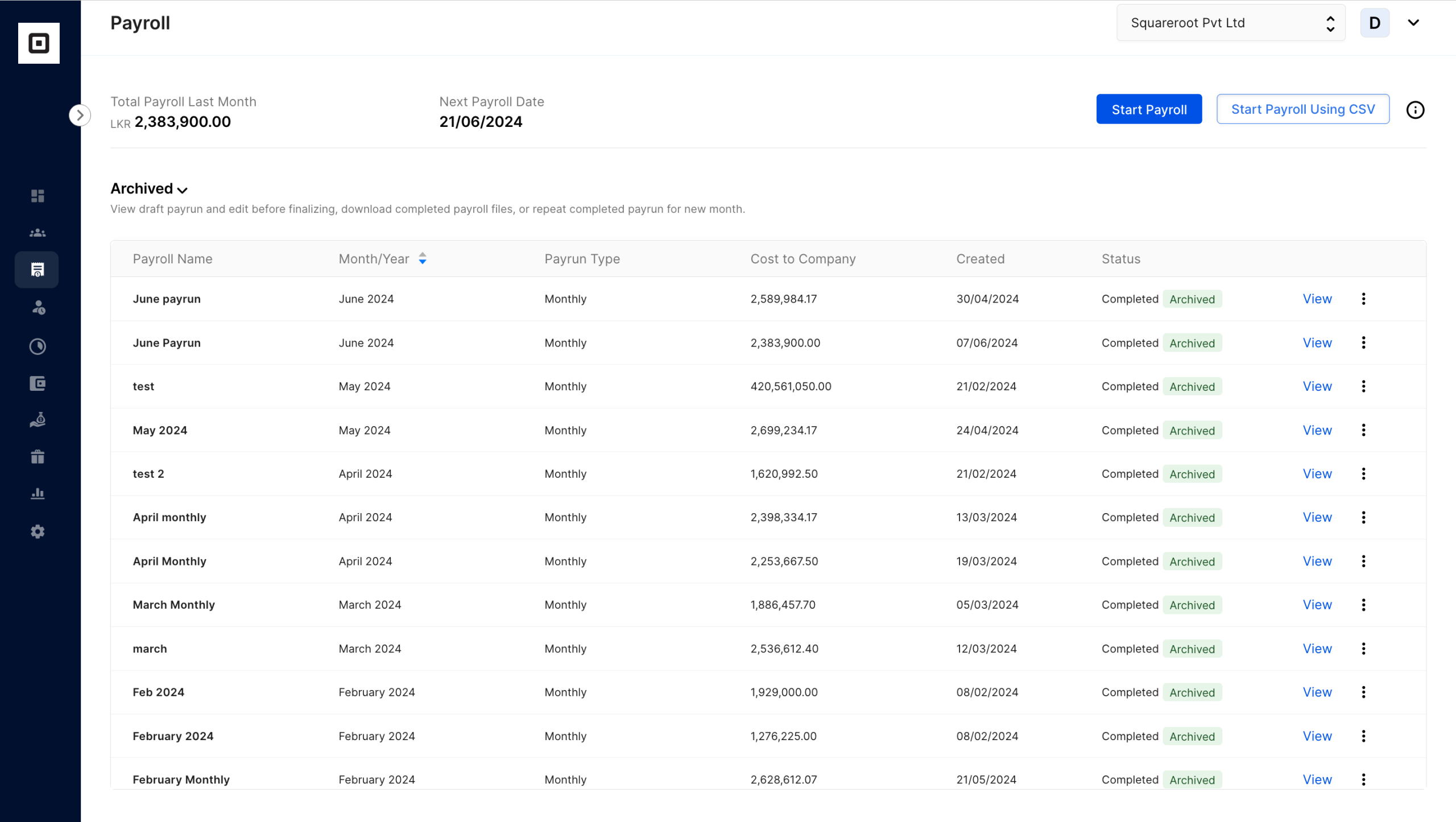
You can filter active, draft, completed and archived payruns from the drop down at the top left side corner of the table.

Active payruns will be considered for payroll calculations within a financial year. Therefore, it is important to maintain a clean and well-kept payroll history on the system. Both draft and completed payruns are considered active payruns

Archived payruns are essentially payruns that are discarded due to different reasons including trying to rectify a mistake done in an already completed payrun.

Archived payruns table
Figure 3 – Archived payruns table

Create payruns

You can create payruns using system data, by uploading a CSV sheet or rerun an existing payrun via payroll home.

Please note that rerun payrun option will be disabled for organisations with foreign currency pegged payrolls

Create payruns buttons
Figure 4 – Create payruns buttons

Was this article helpful?

Your feedback helps us improve these guides.

Thanks for the feedback — glad it helped.

Still need a hand?

A real human on our team will look at your ticket and come back to you — typically within a few working hours.

Open a support ticket