Update leaves settings

Updated May 23, 2026 3 min read Reviewed by The Payroll Success Team at Humanised

On this page
  1. Step 1 – Go to company settings
  2. Step 2 – Make sure payroll policies are properly updated
  3. Step 3 - Update your leaves settings
  4. Step 4 - Custom leave balance
  5. Step 5 - Annual leave reset
  6. Step 6 - Integrate leaves with payroll
  7. Step 7 - Public holidays calendar


This article is for Owners and admins of SMEs who use Humanised

Overview

Step 1 – Go to company settings

Go to the last section on your left-hand navigation panel, this is the settings section. Click on “company settings”

Step 2 – Make sure payroll policies are properly updated

Go through the steps of this support article “Update your payroll policies”

Step 3 – Update your leaves settings

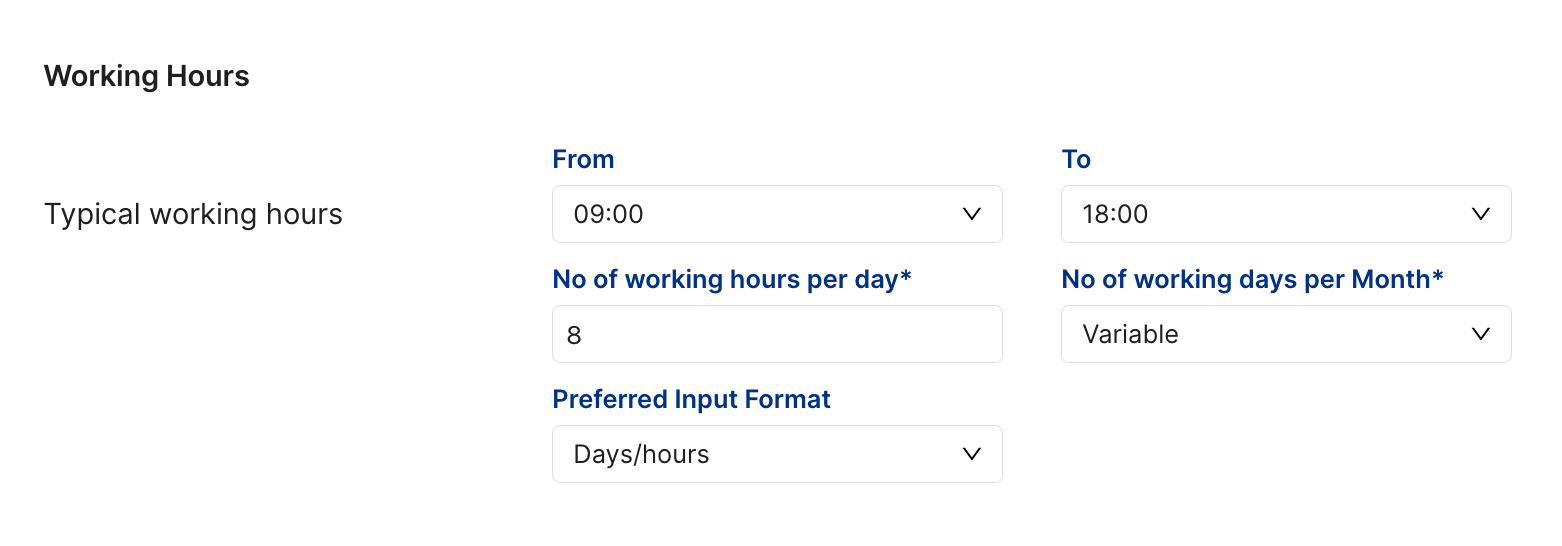
1. Typical working hours (from/to)

These are optional fields. Only gets considered in time attendance management

2. Working hours

Filling in the start and end time is optional, and it does not get involved in any calculations. But the following details are mandatory

3. No.of working hours per day

 This is what you consider for calculation purposes. Typical it will be 8 hours per day

4. No.of working days per month

 This is also for calculation purposes. There are 3 option you can choose from.

Working hours
Figure 1 – Working hours

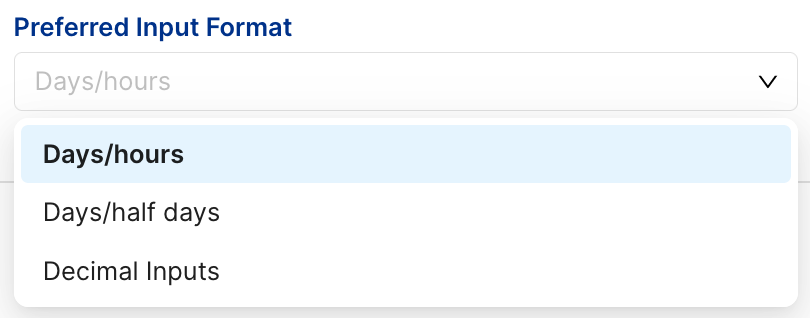
5. Preferred input format

 When uploading no pay or Overtime times for the month. You can choose between two input formats

Prefered input format
Figure 2 – Preferred input format

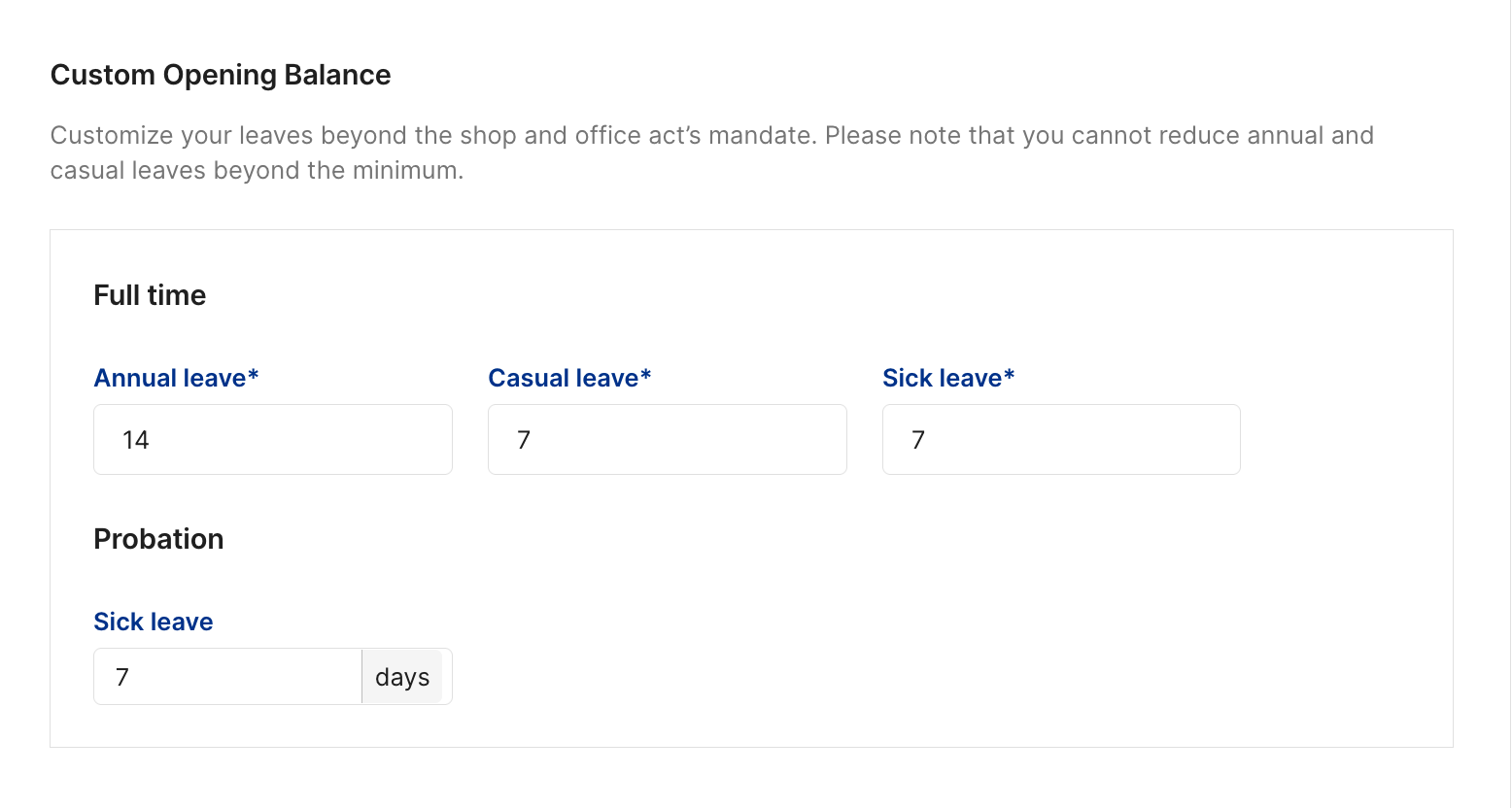
Step 4 – Custom leave balance

You can customize your leave allocation with this setting.

Custom leave balance
Figure 3 – Custom leave balance

Step 5 – Annual leave reset

You can set up the date on which you want your leaves for the year to be reset. The best practice is to reset your leaves on January 1st. If so, set the leave reset date to “01-01”

Custom leave balance
Figure 4 – Annual leave reset

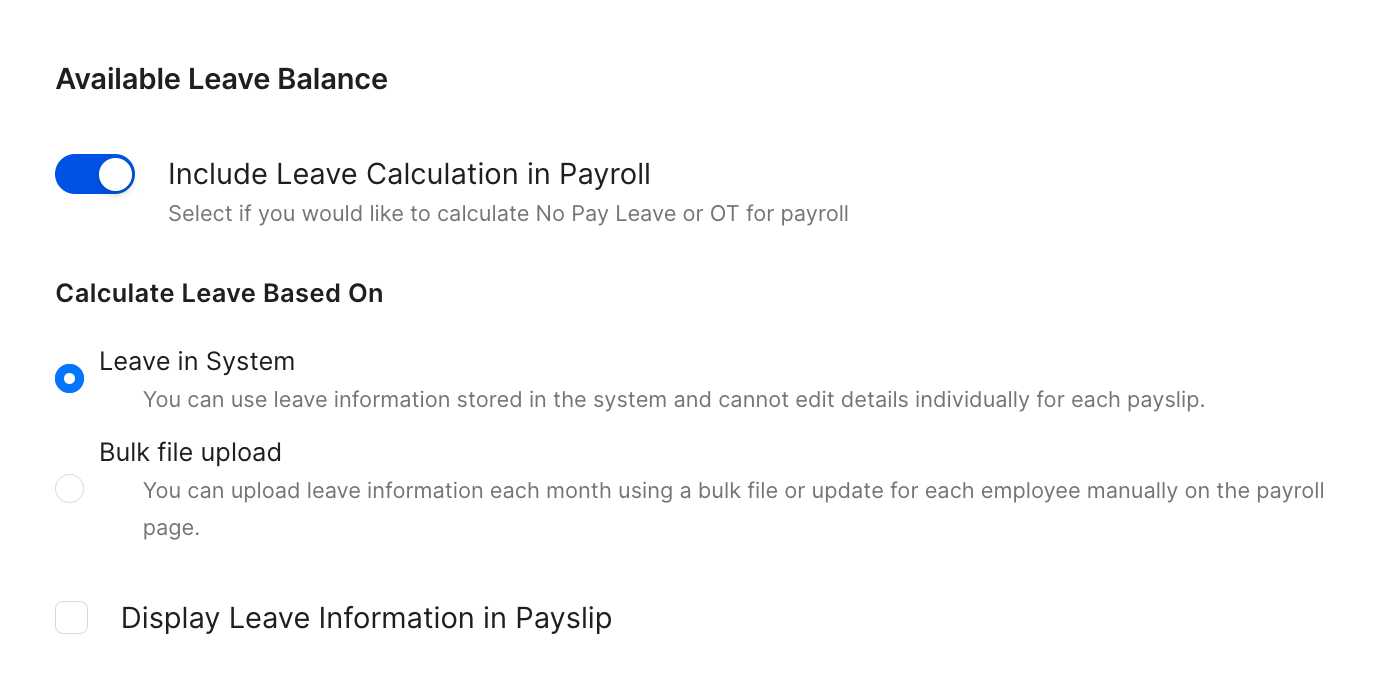
Step 6 – Integrate leaves with payroll

You can use the leave feature in humanised to log no pay leaves too. Switch on this toggle and add those no pay leaves to the respective payrun. The system will figure out the paycycle the no pay leave belongs to and add the no pay amount to the correct payrun.

1. Include leave calculation in payroll

this is to make sure duplicate data doesn’t get into the system.

2. Display leave information in payslip

By switching this one you can display existing leave balances in your leave management feature in the payslip

Integrate leaves to payroll
Figure 5 – Integrate leaves to payroll

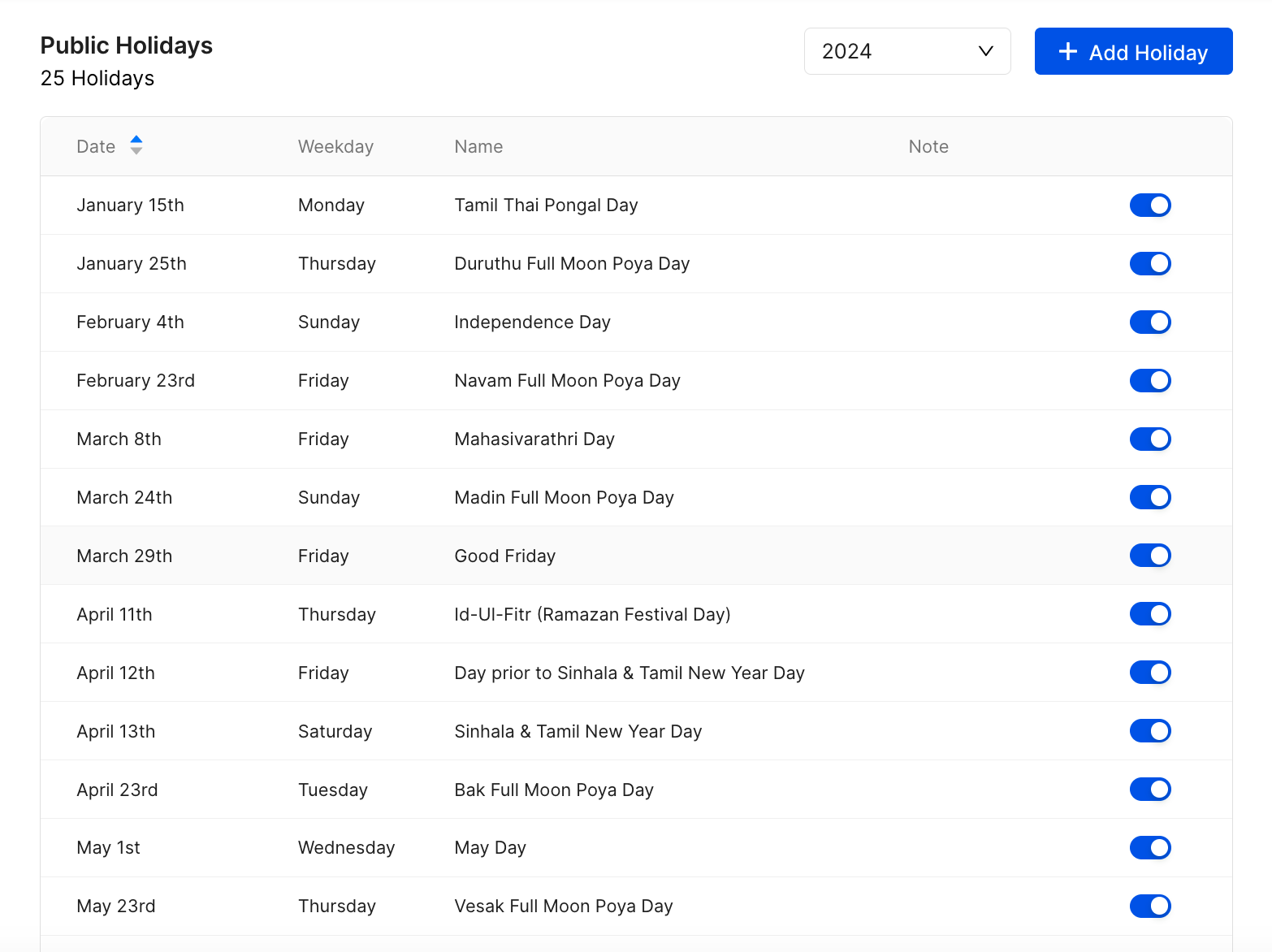
Step 7 – Public holidays calendar

Every calendar year as January 1st roles around the holiday calendar gets updated with the official calendar for the year. This calendar will then notify you and your users about any public holidays when you are applying for leaves. However, you can adjust for these public holidays. You can remove the holidays that are not applicable to your organization and add any holidays that are missing in the existing calendar.

Public Holidays
Figure 6 – Public Holidays

Was this article helpful?

Your feedback helps us improve these guides.

Still need a hand?

A real human on our team will look at your ticket and come back to you — typically within a few working hours.

Open a support ticket