
Automated APIT calculations in payrun
Updated May 23, 2026 · 4 min read · Reviewed by The Payroll Success Team at Humanised
This article is for Owners and admins who use Humanised
Humanised auto calculates all tax tables that can be applied in a payrun. You just must make sure that you’ve set up your organization properly for humanised to do your job for you
APIT in system generated payruns
Step 1 – Verify preferences under company settings
Check to see if you have ticked yes to all required pay items that are configured from company settings as listed below
-
LKR based foreign currency pegged payrolls
-
Budgetary relief allowance
Step 2 – APIT Table 1 (tax on monthly earnings)
Make sure you have ticked yes to all required pay items for each employee.
It’s more likely that your customer success representative has already helped you configure employee pay details in bulk during your onboarding. If not read “How to onboard your employees for the first time (Bulk upload)” to learn how to do that.
Afterwards you can make updates as the need arises.
Step 3 – APIT Table 2 (tax on lump sum payments)
Make sure you have added lump sum payments like bonuses, profits of employee shares etc under the lump sum category
And Table 2 calculations refer to previous payruns. Therefore, it is extremely vital to make sure that you’ve been maintaining the payrun history for the financial year religiously.
Step 4 – APIT Table 6 (tax on tax)
if you are calculating tax on tax for your organization, humanised will forego other applicable tax tables. Switch on this setting from the company settings page.
Humanised currently doesn’t facilitate tax on tax application for part of your payroll. If you need to do so, please get in touch with your customer success representative for assistance
Step 5 – APIT Table 7 (tax on secondary employment income)
If you have employees who work with you as a secondary employment and are employed elsewhere as their primary employment, tax table 7 can be applied for such employees.
Simply go to the relevant employee profile and tick yes for “Secondary Employee Income” and fill in their primary employment income in the field next to it.
Step 6 – Non cash benefits
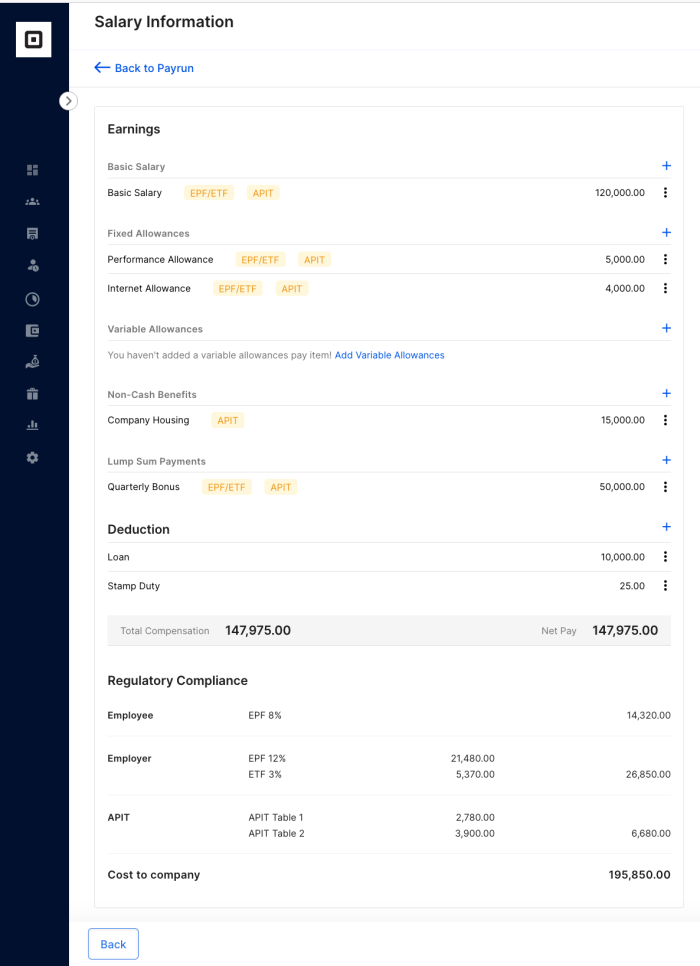
If your organisation provides the employees with benefits that are not awarded in cash, you are required to consider the monetary equivalent value in table 1 calculations. These amounts will not be added to net salary (because the benefit is already awarded to the employee).
What you have to do is to add such benefits under the pay item category named “non-cash benefits”(as seen in the picture below), Humanised will calculated the taxes for you
APIT in bulk upload payruns
Step 1 – Verify preferences under company settings
Check to see if you have ticked yes to all required pay items that are configured from company settings as listed below
-
LKR based foreign currency pegged payrolls
-
Budgetary relief allowance
Step 2 – APIT Table 1 (tax on monthly earnings)
Make sure you have marked yes above all required pay items in the CSV file
You can make more custom choices once you have uploaded the CSV to create a draft
Step 3 – APIT Table 2 (tax on lump sum payments)
Make sure you have added lump sum payments like bonuses, profits of employee shares etc using the tag “lump sum”
Eg:- lump sum: Bonus
And Table 2 calculations refer to previous payruns. Therefore, it is extremely vital to make sure that you’ve been maintaining the payrun history for the financial year religiously.
Step 4 – APIT Table 6 (tax on tax)
if you are calculating tax on tax for your organization, humanised will forego other applicable tax tables. Switch on this setting from the company settings page.
Humanised currently doesn’t facilitate tax on tax application for part of your payroll/employees. If you need to do so, please get in touch with your customer success representative for assistance
Step 5 – APIT Table 7 (tax on secondary employment income)
If you have employees who work with you as their secondary employment and are employed elsewhere as their primary employment, tax table 7 can be applied for such employees.
Simply go to the relevant employee profile and tick yes for “Secondary Employee Income” and fill in their primary employment income in the field next to it.
This way the pay items that you upload via CSV will be considered under tax table 7.
Review APIT amounts
If your organisation provides the employees with benefits that are not awarded in cash, you are required to consider the monetary equivalent value in table 1 calculations. These amounts will not be added to net salary (because the benefit is already awarded to the employee).
What you have to do is to add such benefits under the pay item category named “non-cash benefits”(as seen in the picture below), Humanised will calculated the taxes for you.
When you are using the CSV, you should use the tag “non cash:” to add such pay items. Eg:- non cash: Company housing
Even though humanised payroll does all these calculations for you, we provide you with a clear breakdown of what tax tables were applied and what amounts were added to the total tax amounts. This will help you review your work and verify calculations when needed.
What’s next?:
Was this article helpful?
Your feedback helps us improve these guides.
Thanks for the feedback — glad it helped.
Keep reading
More guides in Payroll.
- Calculate EPF and ETF in payrunHere’s how Humanised make sure EPF and ETF are calculated correctly for your employees. Read more on how…→
- Payrolls pegged to a foreign currency with a foreign base currencyLearn how to run a pegged payrun when you are base currency is foreign→
- Payrolls pegged to a foreign currency with base salaries in LKRLearn how to run a pegged payroll when your base salaries are in Sri Lankan rupees→
Still need a hand?
A real human on our team will look at your ticket and come back to you — typically within a few working hours.
Open a support ticket