Run a payroll using a bulk CSV upload

Updated May 23, 2026 3 min read Reviewed by The Payroll Success Team at Humanised

On this page
  1. Step 1 – Update employee details and company settings (if applicable)
  2. Step 2 – prepare the CSV file
  3. Step 3 – Create draft payrun
  4. Step 4 - Review and complete payrun
  5. Step 5 - Pay your employee salaries!


This article is for Owners and admins who use Humanised

Overview

Step 1 – Update employee details and company settings (if applicable)

Now you’ll have an up-to-date database to run payrolls from.

Step 2 – prepare the CSV file

Use this template and fill in the payroll tab with your employee’s salary details for the relevant month

1. Employee name & employee ID

Humanised uses the employee’s name and employee ID to make sure correct salary details are identified for the corresponding employee. You can export a sheet with these details of all existing employees from the contacts section

2. Pay item tags

Humanised uses a few tags to identify different types of pay items. You can use the following format to add new pay items using these tags.  

a. Basic Salary

Simply type basic salary as the column header Eg:- basic salary

b. Fixed allowance

fixed allowance: name of the allowance. Eg : – fixed allowance:Mobile Allowance

c. Variable allowance

allowance: name of the allowance. Eg:- allowance: Travel Allowance

d. Non – cash benefits

non cash benefits: name of the benefit. Eg:- non cash benefits:Company Housing

e. Lump sum payments

lump sum: name of the payment. Eg:- lump sum: Bonus

f. Deductions

deduction: name of the deduction. Eg:- deduction: Loan Installment

g. No pay time

no pay. Eg:- No pay

h. Overtime (time)

OT: overtime type. Eg:- OT: Normal Overtime

i. Extra fields in pay slip

You can add up to 6 extra fields that will appear at the bottom of your payslip. Payslip: Total Leave entitlement

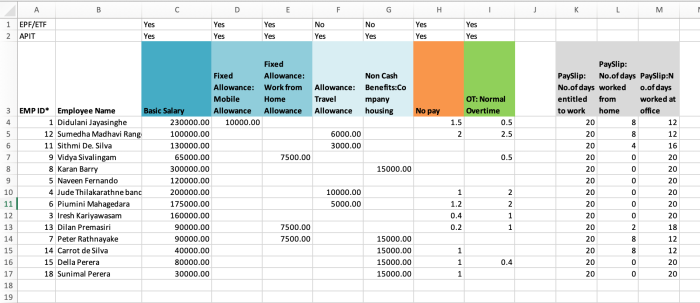
Properly filled CSV template
Figure 1 – Properly filled CSV template

3. Save as CSV

Once you are done, save the excel sheet in CSV UTF 8 file format. This is the file you will upload to humanised

Step 3 – Create draft payrun

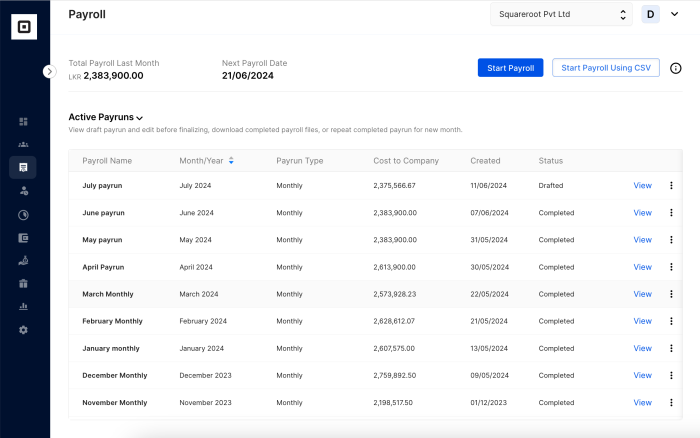
Start payroll using CSV
Figure 2 – Create payrun using CSV

First the system will calculate EPF, ETF and APIT automatically according to your preset preferences. Then it’ll make the necessary deductions and statutory calculations to come up with the “net salary” and “cost to company” for each employee and for the whole organization. If there are any stamp duties, pro-rated salaries or any other additional calculations set up by you all those will also get added as pay items to relevant emplyees

Step 4 – Review and complete payrun

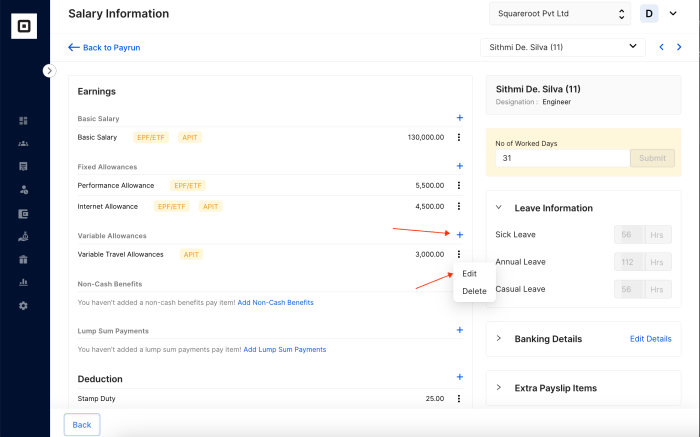
Add update pay items
Figure 3 – Add and update pay items

Step 5 – Pay your employee salaries!

The payroll summary page will load with the following information.

Was this article helpful?

Your feedback helps us improve these guides.

Thanks for the feedback — glad it helped.

Still need a hand?

A real human on our team will look at your ticket and come back to you — typically within a few working hours.

Open a support ticket