Update company details

Updated May 23, 2026 1 min read Reviewed by The Payroll Success Team at Humanised

On this page
  1. Overview
  2. Step 1 - Go to company settings
  3. Step 2 - Update your company details
  4. What's next?:


This article is for owners and admins who use Humanised

Overview

When you are on your HR and Payroll software for the first time, you’ll need to configure this new organisation to suit your needs best. You begin this process in the company settings section. This article will help you complete details related to your company correctly.

Step 1 – Go to company settings

Go to the last section on your left-hand navigation panel, this is the settings section. Click on “company settings”

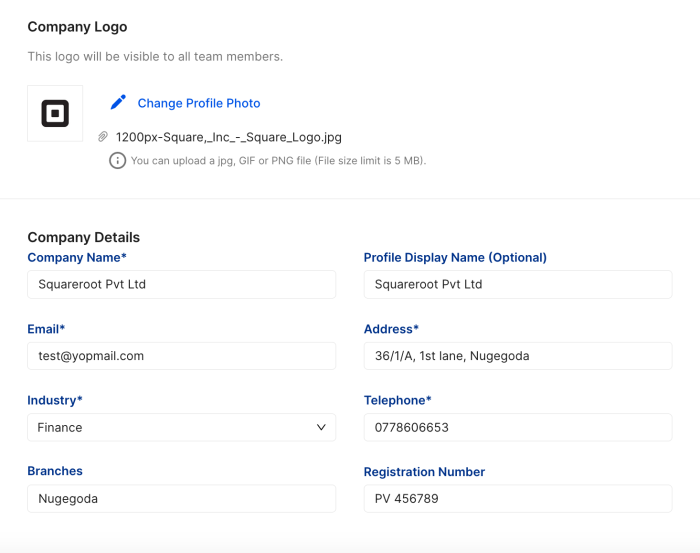
Step 2 – Update your company details

accurately completed company details
Figure 1 – A sample of a accurately filled company settings

Was this article helpful?

Your feedback helps us improve these guides.

Thanks for the feedback — glad it helped.

Still need a hand?

A real human on our team will look at your ticket and come back to you — typically within a few working hours.

Open a support ticket