Add employees to the system: Bulk upload

Updated May 23, 2026 2 min read Reviewed by The Payroll Success Team at Humanised

On this page
  1. Overview
  2. Bulk Employee Import via CSV
  3. Step 1: Go to contact section
  4. Step 2: Download the template
  5. Step 3: Populate the spreadsheet
  6. Step 4: Save the spreadsheet (excel) as a CSV format
  7. Step 5: Import data to the system
  8. What's next?:


This article is for Owners and admins who use Humanised

Bulk Employee Import via CSV

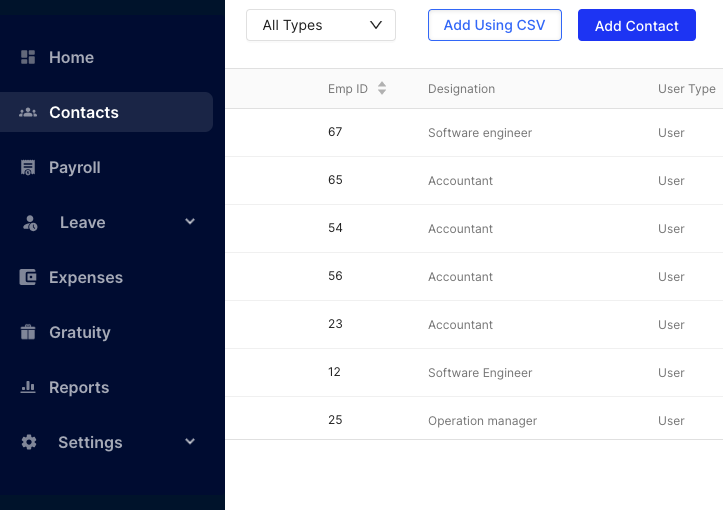
Step 1: Go to contact section

Figure 1 – Contact section

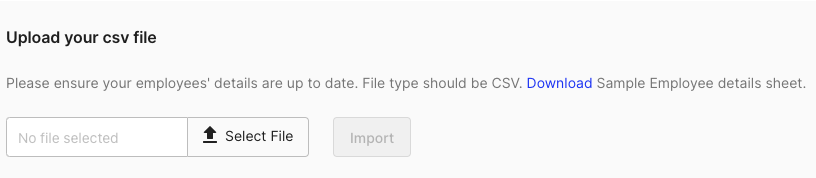
Step 2: Download the template

Figure 2 – Template download option

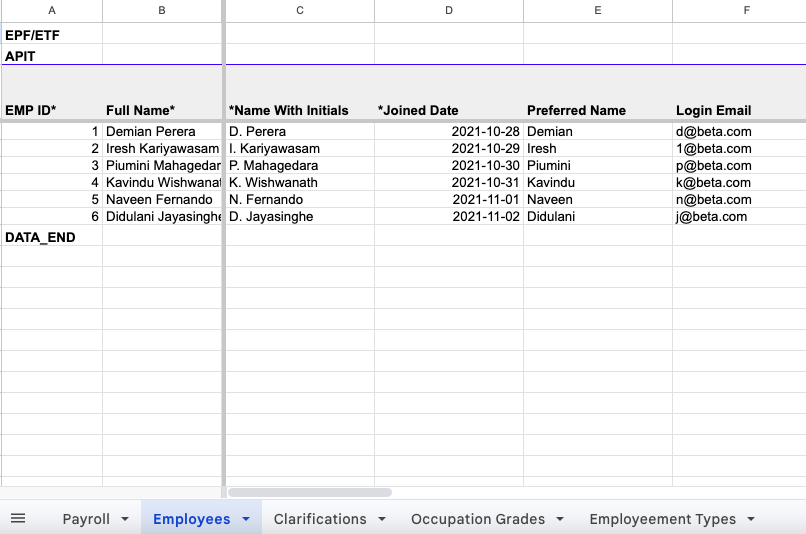
Step 3: Populate the spreadsheet

Figure 3 – Spreadsheet

Step 4: Save the spreadsheet (excel) as a CSV format

Step 5: Import data to the system

Figure 4 – CSV import


The bulk upload template ensures you capture all the essential details needed for payroll processing. However, you can further personalize your onboarding process by reviewing individual profiles or sending out an onboarding form to employees asking themselves to fill out alll additional details required for the onboarding process.

Was this article helpful?

Your feedback helps us improve these guides.

Thanks for the feedback — glad it helped.

Still need a hand?

A real human on our team will look at your ticket and come back to you — typically within a few working hours.

Open a support ticket