Edit employee details

Updated May 23, 2026 1 min read Reviewed by The Payroll Success Team at Humanised

On this page
  1. Step 1 – Find the employee profile/ contact
  2. Step 2 – Open the employee profile
  3. Step 3 – Update details


This article is for Owners and admins who use Humanised

Overview

Whether you added employees to the HR system through bulk upload or using the system, you can easily access and edit their details within their profiles at any time.

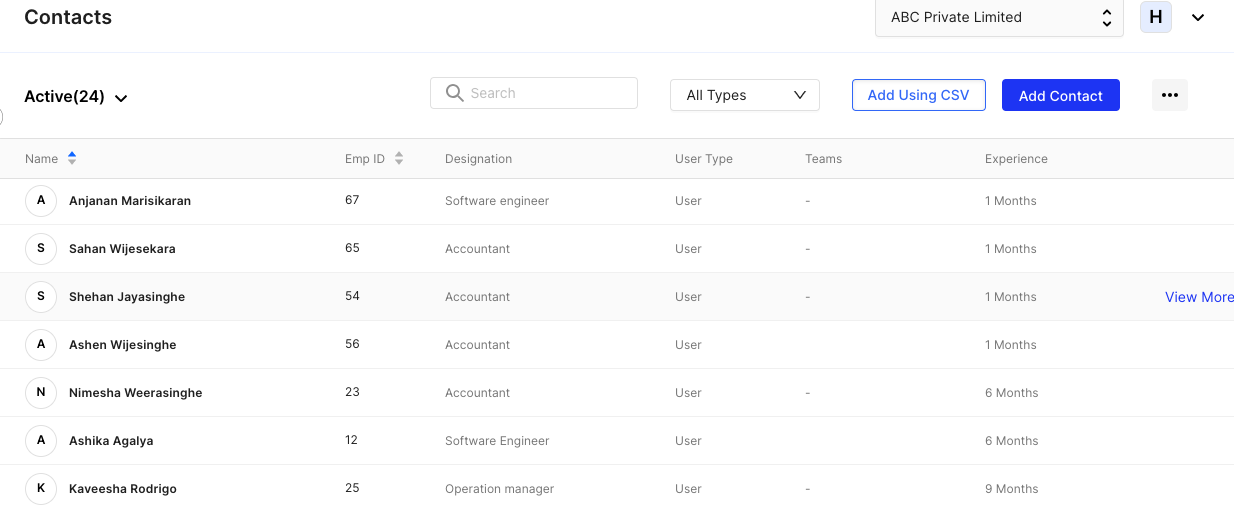
Step 1 – Find the employee profile/ contact

Figure 1 – Contacts home section

Step 2 – Open the employee profile

Step 3 – Update details

Figure 2 – Employee profile


You can use the navigation bar at the top right corner that lets you quickly switch between employee profiles. This can save you time when managing multiple employee details.

Was this article helpful?

Your feedback helps us improve these guides.

Thanks for letting us know. Raise a support ticket and a team member will follow up.

Still need a hand?

A real human on our team will look at your ticket and come back to you — typically within a few working hours.

Open a support ticket