
How to give access

Updated May 23, 2026 2 min read Reviewed by The Payroll Success Team at Humanised

On this page
  1. Inviting Owner (Contact Support):
  2. Inviting Admins:
  3. Inviting HR Admins or Users:


This article is for Owners and admins who use Humanised

Overview

Humanised Payroll system empowers administrators with the ability to assign user roles and permissions. This ensures appropriate access to HR system functionalities, optimizing data security and streamlining workflows.

Inviting Owner (Contact Support):

If you are trying to change the owner, you will have to get in touch with us after following the steps listed below. Please note that the existing owner will be changed to a user.

  1. Onboard the individual to the system as a user.
  2. Send an email to didulani@humanisedventures.com with the following information: 
  • Username of the new owner (as it appears in the system) 
  • Employee ID of the new owner (the number displayed at the top of the URL within their employee profile) 

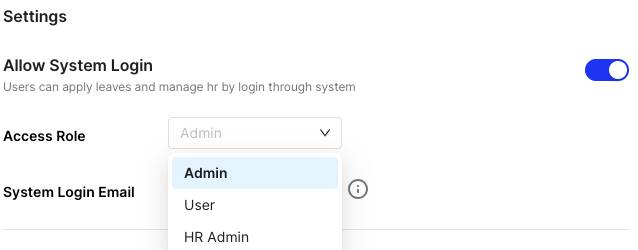
Figure 1 – System login settings

Inviting Admins:

Inviting HR Admins or Users:

Was this article helpful?

Your feedback helps us improve these guides.

Thanks for the feedback — glad it helped.

Still need a hand?

A real human on our team will look at your ticket and come back to you — typically within a few working hours.

Open a support ticket