Complete employee profile accurately
Updated May 23, 2026 · 3 min read · Reviewed by The Payroll Success Team at Humanised
On this page
This article is for Owners and admins who use Humanised
Overview
-
Complete the employee’s profile accurately for smooth onboarding.
Both manual employee profile creation and bulk upload options of the HR system only capture mandatory data initially. Complete the profile to ensure a smooth onboarding process and save time on HR tasks down the road!
Step 1: Open the employee’s profile
-
Go to the contact section from the left-hand navigation panel and you will find a list of all the employees/ employee profiles. You can utilize the search bar as well if you need to find a specific employee profile quickly.
-
Click on the relevant employee’s name to open the employee’s profile.

Step 2: Update information in each section properly
While not mandatory, including the following information strengthens your employee profiles.
Personal Details:
-
Personal details
-
Emergency details
Employment Details:
-
Company email and telephone number
-
Resigned date (if the employee has already resigned or you know the date of resigning)
-
Secondary income- mark the “secondary income” checkbox if this is the secondary income of that employee. This helps to calculate the APIT accurately.
-
Teams – You can select the relevant team of the employee based on department, business unit or other team category.
-
Experience – You can update the work experience of the employee here. You can add new experiences and edit.
Pay Details:
Earnings and deductions: You can add and edit pay items here and the data will be saved in the system so you can use these for future payruns.
Bank Details:
Employees getting paid in cash:
Toggle “Employee Paid in Cash” to “On” if the employee receives cash payments.
If salary is being credited to bank account:
- This is the main account where the employee’s salary will be deposited.
- Fill in the necessary details, which typically include: Bank Name, Account Number, Account Name, Branch Number.
Adding Secondary Bank Account (Optional):
- If the employee’s salary needs to be split and deposited into another account, you can add a secondary account by clicking “Add a Secondary Account.”
- Fill in the details for the secondary account just like you did for the primary one.
- Then update the amount that should be credited to the primary account which is under “Split Salary”.
- Update the email address where the employee’s payslip will be sent under “Email address for payslip send off”. It’s important to use the email address the employee prefers for receiving their payslip. Most people choose their personal email address for this, as opposed to their work email.

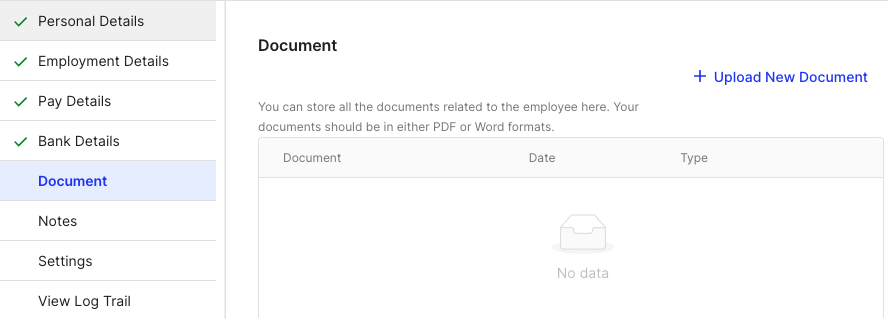
Document:
-
Securely store important employee documents like resumes, contracts, performance reviews, tax files, and more. This creates a central location for all employee-related documents.
-
All the documents should be in word or pdf format.

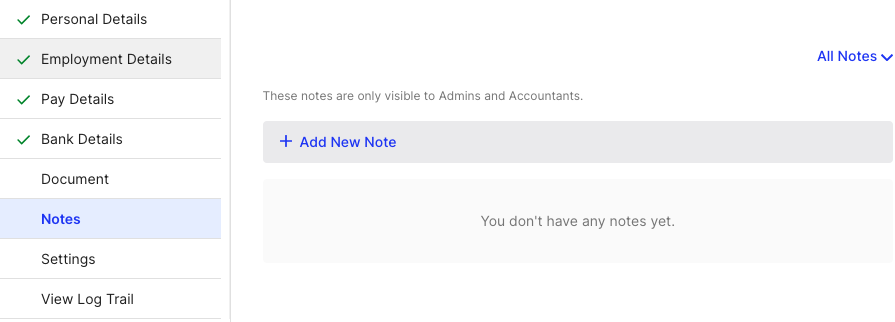
Notes:
You can add notes related to employees here and set reminders as well.
Eg: next performance review is on 31st May 2024

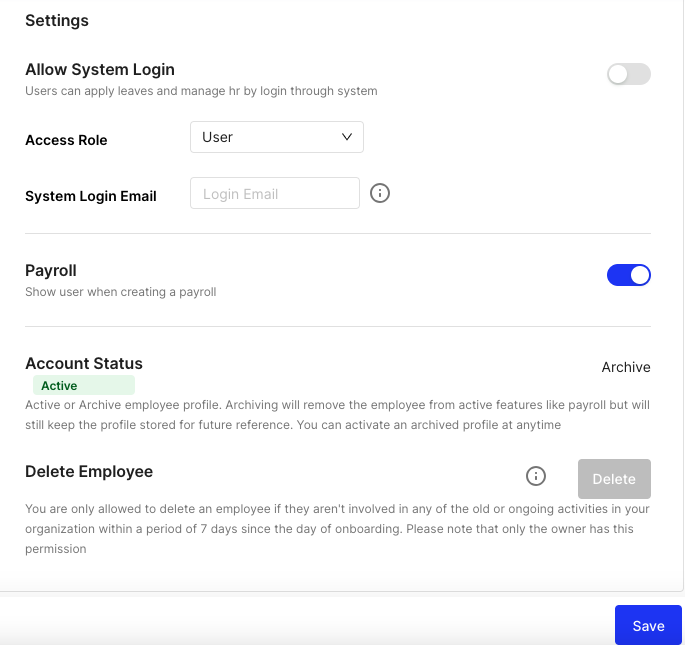
Settings:
System login access:
- Turn on “Allow System Login” if you want the employee to access the system. This might be useful for employees who need to manage their own payroll information or timesheets.
- Leave it off if the employee doesn’t need to log in.
Access role:
- Choose the employee’s access level from the “Access Role” menu. This determines what information they can see and edit within the system.
System login mail:
- Update this with the email address the employee will use to log in. The system will send a password reset email to this address.
Include in payroll:
This section lets you control whether the employee is included in upcoming payroll processing.
- Turn on “Payrun” if the employee needs to be shown during the next payrun.
- Leave it off if the employee doesn’t need to be included in the upcoming payroll (for example, a new hire who hasn’t started working yet)

To finalize your updates, click the “Save” button after editing each section.
What’s next?:
Was this article helpful?
Your feedback helps us improve these guides.
Keep reading
More guides in Contacts.
- Onboard a new employee by email in HumanisedSend a self-service onboarding invite, let the employee fill in their own details, then review and approve. The…→
- Delete an employee profileIf an employee profile is no longer needed for payroll or system purposes, you have the option to…→
- How to give accessHumanised Payroll system empowers administrators with the ability to assign user roles and permissions. This ensures appropriate access…→
Still need a hand?
A real human on our team will look at your ticket and come back to you — typically within a few working hours.
Open a support ticket